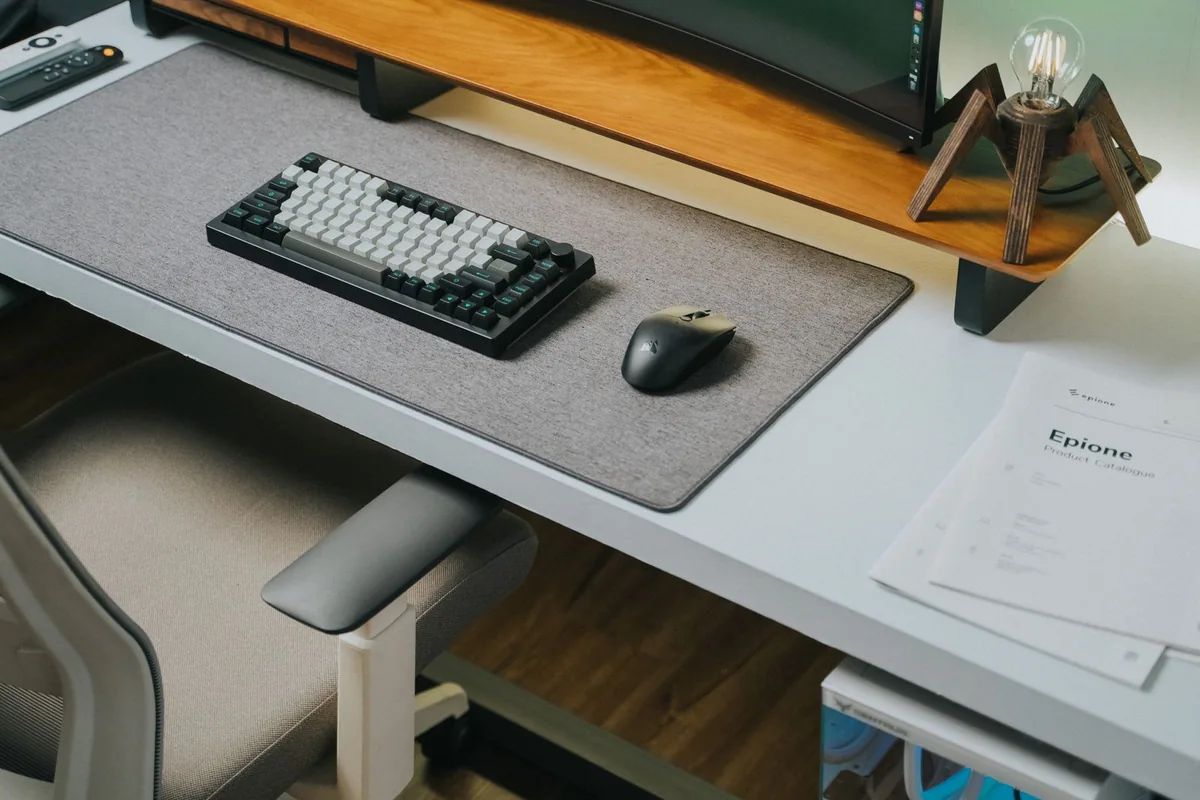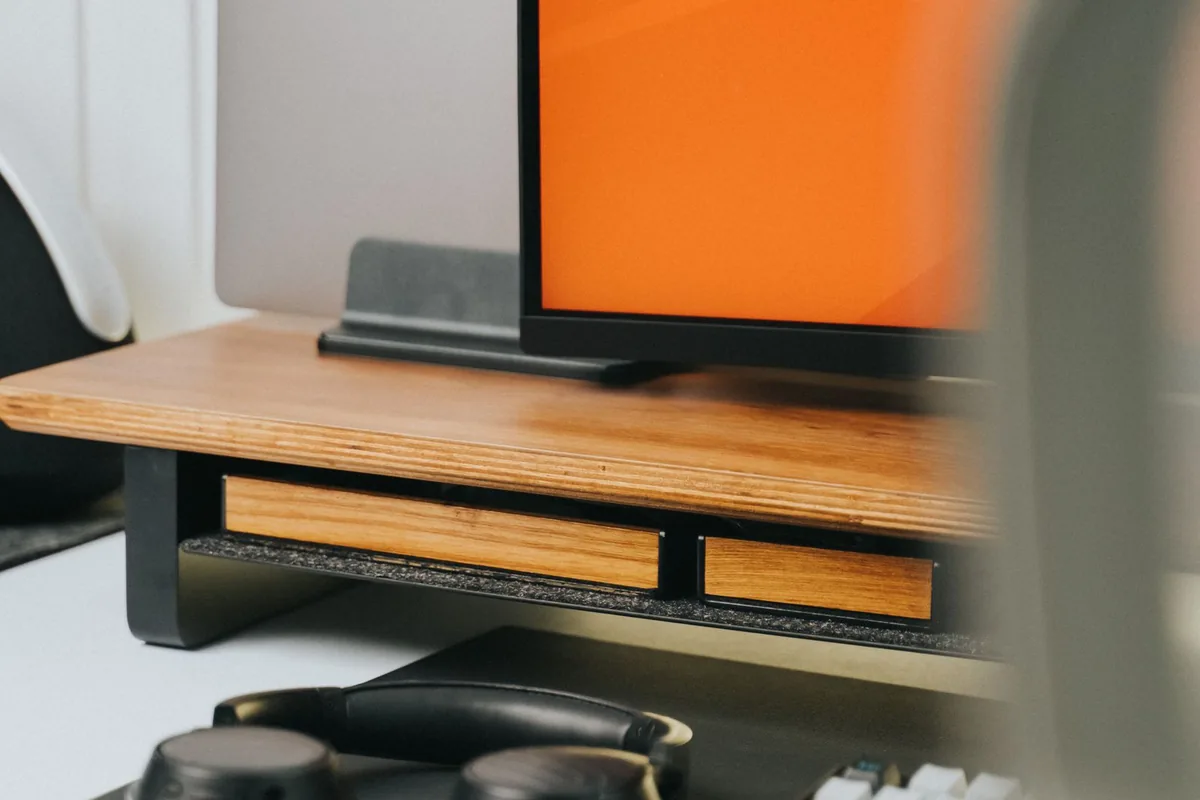
A compact desk needs to hold more than a screen. There is a keyboard, a mouse, a notebook, and probably the coffee you keep moving out of the way. Buying the largest monitor that fits between two walls can leave nowhere comfortable to work. The right choice begins with the usable surface and the distance between your chair and the display.
For everyday office tasks, prioritize clear text, sensible positioning, and a connection your computer supports. This guide explains the tradeoffs without claiming a tested best monitor. Treat the scenario choices as a shortlist of approaches, then verify the specific model documentation.
Measure the stand, not just the screen
Mark the monitor stand’s footprint on your desk using its published dimensions. Include room for the keyboard and where your mouse travels. A narrow screen with a deep stand can consume more useful surface than a larger display on a compact base. Also consider the height of any shelf above the desk.
A monitor arm can free the surface, but it introduces its own compatibility checks. Confirm the mounting pattern, supported weight, clamp depth, and desk construction. Thin or fragile furniture may not suit a clamp. Do not buy an arm solely because it looks tidy in a photograph.
Match resolution to readable text
Higher resolution can support finer detail, but operating-system scaling determines whether text feels comfortably sized. A spreadsheet that technically shows more columns is not an improvement if you lean toward the screen to read them. Compare the resolution, physical size, and scaling you intend to use together.
For routine documents and browsing, stable readability matters more than a headline refresh rate. People who also play games should check refresh-rate support across the whole connection path. The laptop, adapter, cable, and monitor must agree on a usable setting; the panel specification alone is not enough.
Let connectivity simplify the desk
A compatible USB-C monitor may combine display connection, peripheral access, and laptop charging. Check the stated power delivery against your laptop requirements rather than assuming every USB-C monitor can replace your charger. The port shape does not describe all supported functions.
If your desktop already has an appropriate video output and you seldom disconnect it, an ordinary display connection may be simpler and cheaper. Keep peripherals connected to the computer and spend on the panel characteristics you need. A sophisticated built-in hub is less valuable when it duplicates an existing setup.
Choose adjustment over unnecessary extras
Height adjustment and a useful tilt range help you place the display around your actual sitting position. Built-in speakers can handle occasional system sounds but should not determine your purchase if music or call clarity matters. Check whether your call software still needs a separate microphone or camera.
Skip an ultrawide when desk depth, application sharing, or your laptop’s display support makes it awkward. Two monitors are not automatically better either: stands and cabling multiply. On a small desk, one well-positioned display plus the laptop screen can be the more manageable starting point.
Choose by your situation
| Your situation | Useful starting point | Main tradeoff |
|---|---|---|
| Shallow desk | Compact stand and adjustable screen | Less visual space; more working surface |
| One-cable laptop desk | Compatible USB-C monitor | Higher cost; charging must be checked |
| Existing desktop computer | Simple monitor with supported video input | Fewer hub features; straightforward connection |
Before you place the order
Compare the exact model and configuration, not just the product family. Save the listing and the compatibility documentation so you can check what was promised if something arrives differently. Read the seller’s current return conditions, including packaging requirements, shipping charges, and any exclusions for opened items. A lower price is less useful when it removes your opportunity to assess fit or compatibility.
Keep the first setup simple. Connect the essential device or accessory, confirm it works in your normal application, and then add the rest of your equipment. During the return period, try an ordinary full workday or listening routine rather than only the first few minutes. Keep your previous equipment until the replacement has shown it can handle the job.
Frequently asked questions
Is a curved screen necessary?
No. Consider it for your viewing distance and preferred size, but do not treat curvature as a prerequisite for comfortable office work.
Can I use any USB-C cable?
No. Check the cable’s supported video and power functions. A charging cable may not support the display connection you need.
Sources and shopping information
The following official sources were checked on October 7, 2026. Manufacturer pages can change; confirm current specifications, availability, and the exact regional version before buying. Links labeled manufacturer link lead directly to a brand, without affiliate tracking.