The appeal of a dock is simple: connect one cable and your desk is ready. The frustrating version is equally familiar. The second monitor stays dark, charging slows down, or a peripheral disconnects when another device is attached. These problems often begin with buying a dock by its number of sockets rather than checking the complete system.
A USB-C connector is a physical format, not a promise that every port supports the same data, video, and charging capabilities. This guide helps you define requirements before comparing products. It does not claim that every laptop can use the same one-cable arrangement.
Write down every connection
List the devices you plug in during a normal week: screens, keyboard receiver, webcam, headset, storage drive, and Ethernet. Record the connector and whether each item needs power or high-speed data. Separate occasional needs from permanent ones so a rarely used card reader does not drive an unnecessarily expensive purchase.
Then check the laptop’s exact model documentation. A family name is insufficient when generations have different ports. Identify which socket you will connect and whether your employer permits docks requiring drivers or additional software. This matters especially for managed computers where installation rights are restricted.
Resolve the display question first
Write down the number of screens, their resolution, and intended refresh rate. Find explicit dock support for that combination with your operating system. “Dual monitor” marketing may refer to a setup that differs from yours, and support can change with the host computer.
Some products rely on software-driven display technology. That approach may be useful, but read its requirements and limitations before purchasing. Do not assume a dock overrides the laptop’s native display constraints. If a listing avoids explaining how its second video output works, ask for the compatibility documentation.
Read charging figures carefully
The dock’s input power is not always the amount delivered to the laptop. Accessories and the dock itself can consume part of the available budget. Check the stated host power delivery and whether the required power adapter is included. USB-IF documentation explains the power-delivery framework, but each product still needs its own specifications.
A laptop may operate differently under heavy load if the available charging power is lower than its usual adapter provides. When charging support is unclear, plan to retain the original charger. A two-cable desk is better than relying on an unsupported power assumption.
Choose a hub when a hub is enough
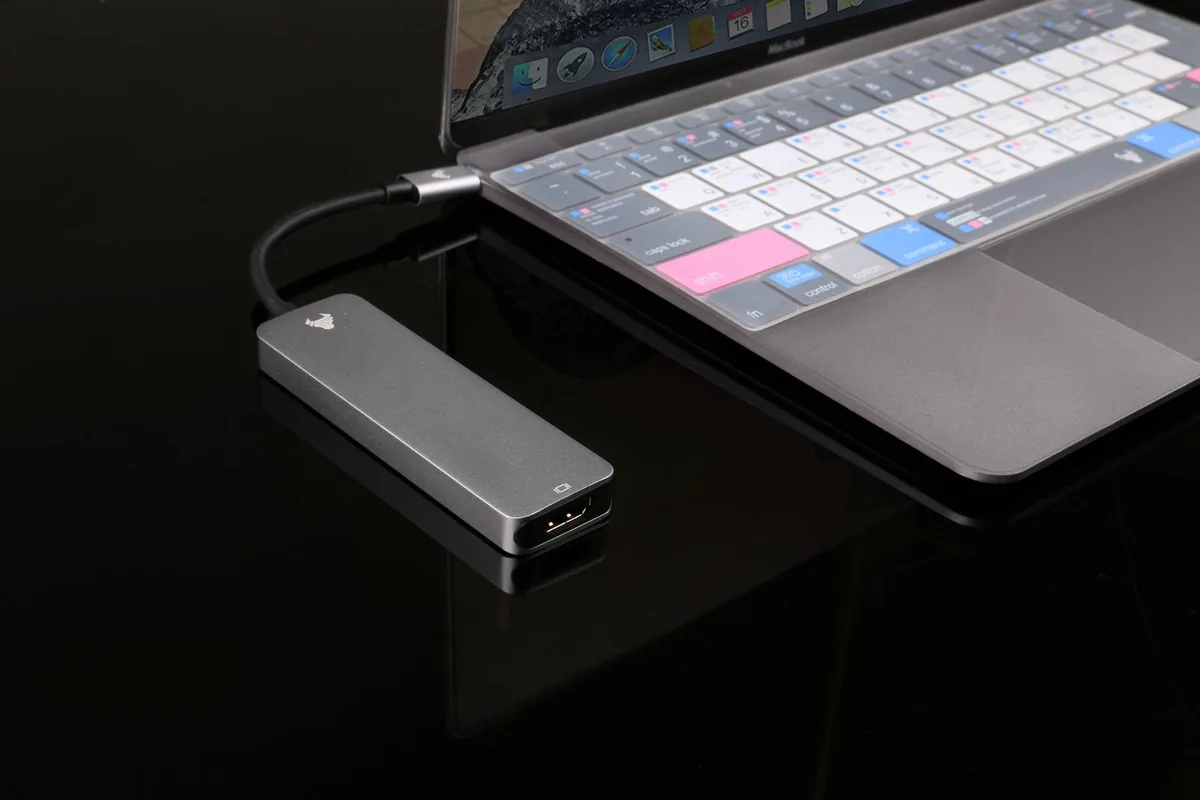
For a traveler who needs one video output and a USB accessory, a compact adapter may be more practical than a substantial powered dock. A fixed desk with Ethernet, multiple peripherals, and a supported display arrangement is where a dock’s convenience has more value.
Skip a dock if your monitor already provides the compatible connections you need. Also account for cable length: a short fixed cable can force awkward placement near the laptop. Keep the dock ventilated according to its instructions and make sure frequently used ports remain accessible.
Choose by your situation
| Your situation | Useful starting point | Main tradeoff |
|---|---|---|
| One occasional presentation screen | Small video adapter | Portable; fewer permanent ports |
| Daily fixed workstation | Powered dock matched to host | Convenient; more compatibility checks |
| USB-C monitor with enough ports | Monitor’s integrated hub | Less equipment; limited expansion |
Before you place the order
Compare the exact model and configuration, not just the product family. Save the listing and the compatibility documentation so you can check what was promised if something arrives differently. Read the seller’s current return conditions, including packaging requirements, shipping charges, and any exclusions for opened items. A lower price is less useful when it removes your opportunity to assess fit or compatibility.
Keep the first setup simple. Connect the essential device or accessory, confirm it works in your normal application, and then add the rest of your equipment. During the return period, try an ordinary full workday or listening routine rather than only the first few minutes. Keep your previous equipment until the replacement has shown it can handle the job.
Frequently asked questions
Does USB-C mean Thunderbolt?
No. Check the laptop and dock documentation for their actual supported standards rather than inferring capability from the connector shape.
Why is my laptop still losing charge?
Confirm the host charging specification and correct power adapter. Available power may not meet your laptop’s requirements during the workload you are running.
Sources and shopping information
The following official sources were checked on October 7, 2026. Manufacturer pages can change; confirm current specifications, availability, and the exact regional version before buying. Links labeled manufacturer link lead directly to a brand, without affiliate tracking.